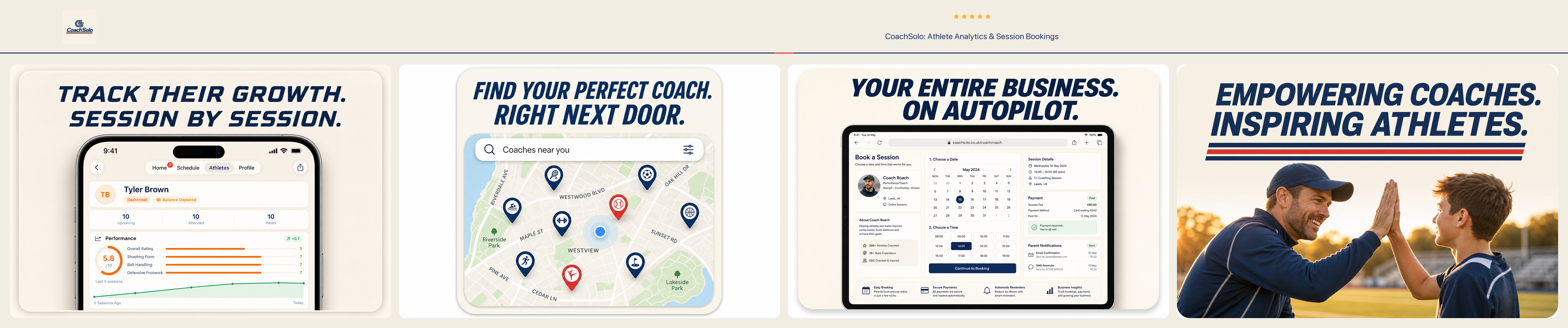
CoachSolo helps private sports coaches run their business from their iPhone — scheduling, athlete development, progress tracking, and payments — while giving parents a simple website to view availability, book sessions, and pay online.
Version 2 connects the CoachSolo iPhone app and coachsolo.co.uk so you keep working the way you always have, and parents get a professional booking experience without downloading an app.
Get started
- Download the CoachSolo app from the App Store (iOS 17+).
- Sign in with Apple or Google — the same account works on the website.
- Complete your web profile— a short setup on coachsolo.co.uk. The app keeps working while you finish this; a banner reminds you until it's done.
App vs web — what goes where
| iPhone app | Website |
|---|---|
| Daily schedule, classes, and open slots | Public profile and booking page setup |
| Athletes, development plans, and session ratings | Coach dashboard (overview, schedule, billing) |
| Payment ledger and chase reminders | Stripe Connect payout setup |
| Publish open slots to your booking page | Share and copy your booking link |
| Solo-Assist clip analysis | View synced data and parent bookings |
Day to day, live in the app.Use the web for setup, your public booking page, and a light dashboard when you're at a laptop.
Web onboarding (four steps)
After your first sign-in, finish these steps on the website:
- Public profile — display name, bio, and optional photo. This is what parents see on your booking page.
- Location — city and postcode so parents know where you coach.
- Booking link — choose your personal URL, e.g.
coachsolo.co.uk/coach/jane-smith. Share this link by text, email, or social media. - Payouts — connect Stripe so you can accept card payments from parents. Once complete, online booking and payment go live.
Schedule and open slots
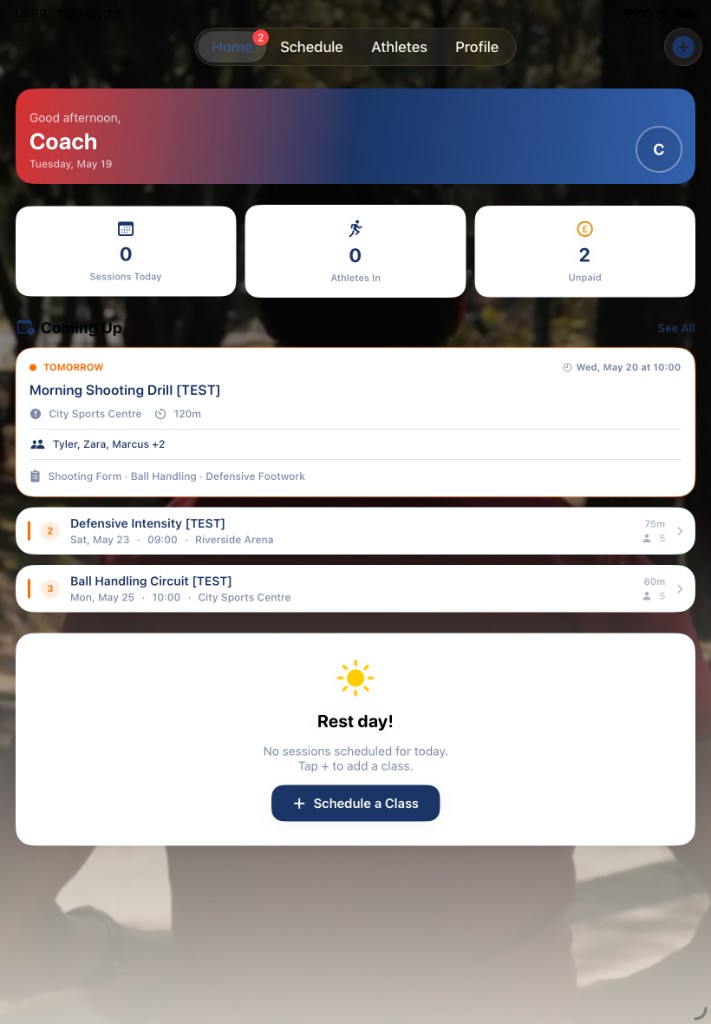
Build your week in the Schedule tab as you always have — create sessions, generate open slots from your availability, and manage your calendar.
When a slot is ready for parents to book, turn on Publish to web on that open slot. It appears on your public booking page within about a minute. Turn it off anytime to hide it without deleting the slot from your app.
Athletes and development
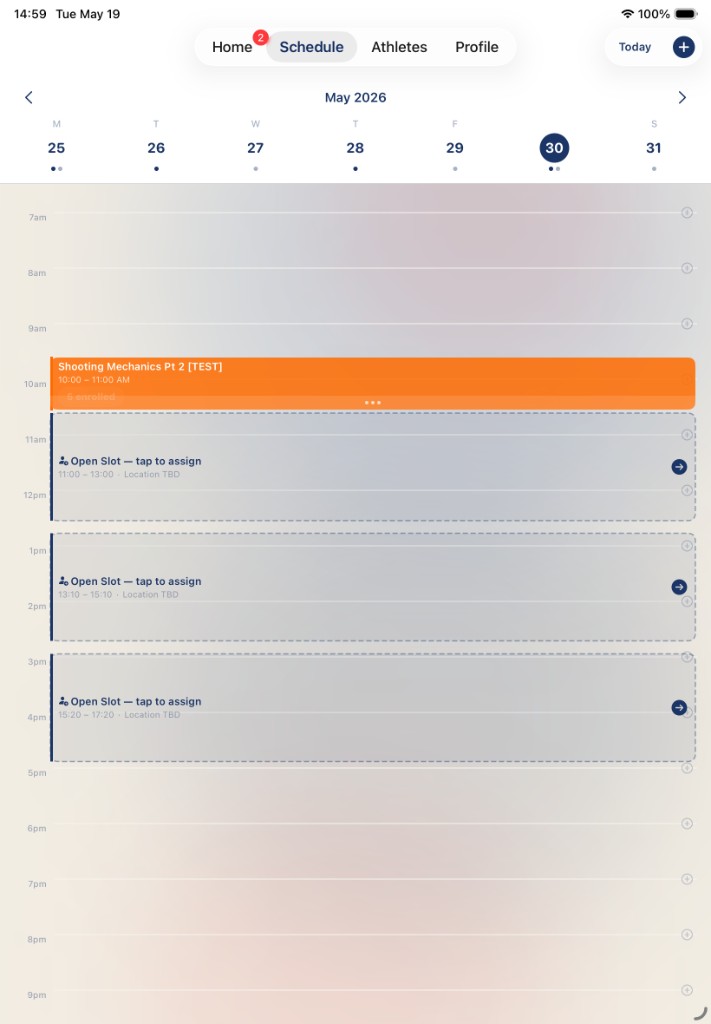
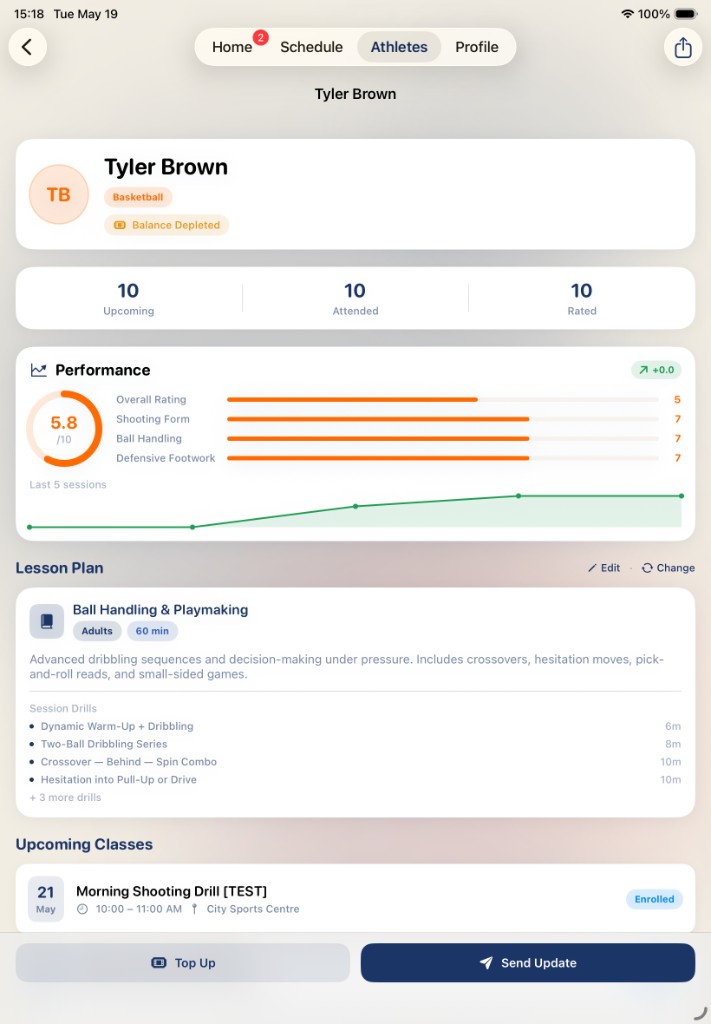
Add athletes in the Athletes tab with parent contact details. CoachSolo automatically assigns a starter lesson plan and development plan based on sport and age group. After each session, rate performance and add notes — parents can see progress summaries on the website once data has synced.
Your booking link
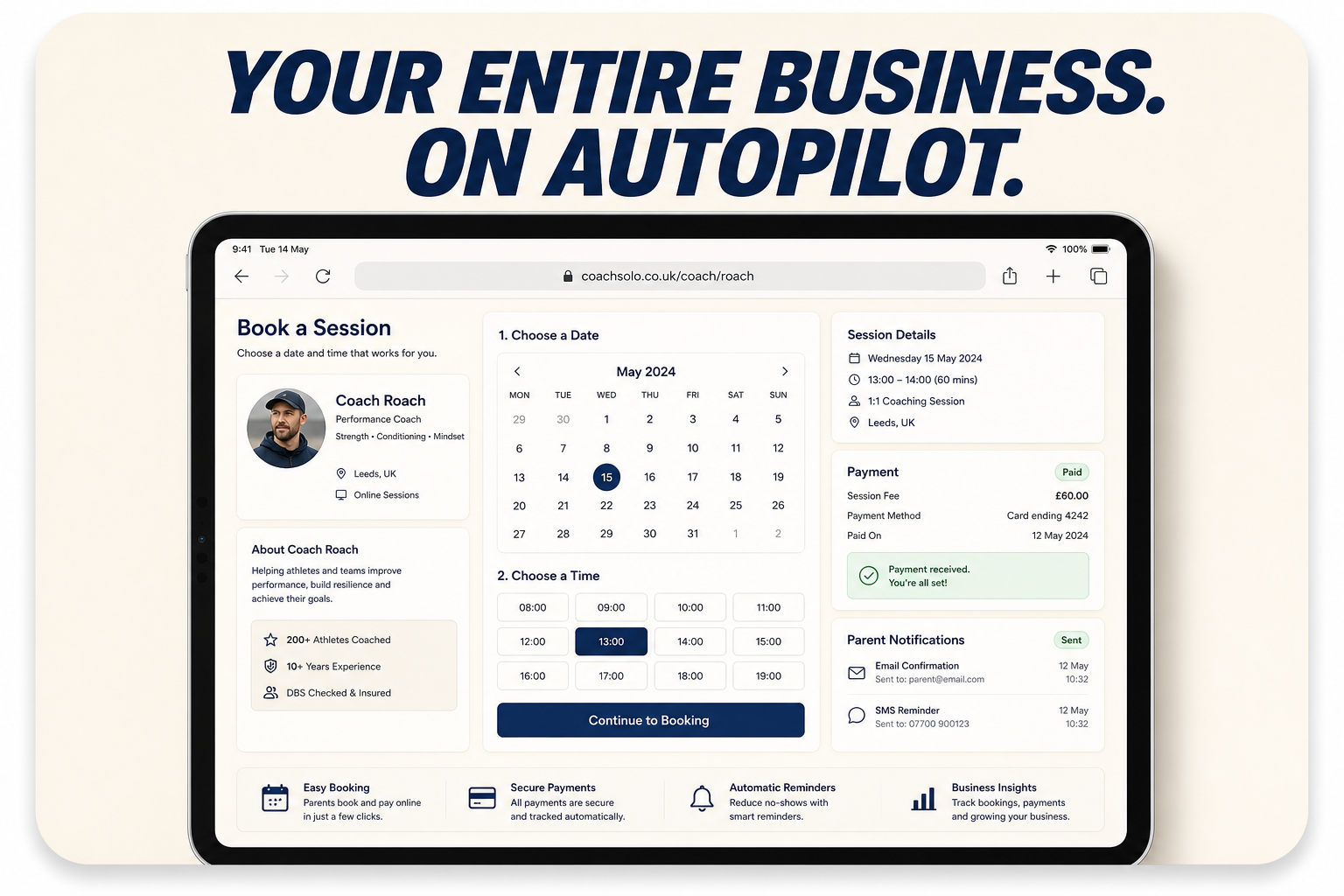
Your booking page lives at coachsolo.co.uk/coach/your-slug. Parents can browse your profile and available slots without signing in. They sign in when they're ready to book. You can copy the link from your app profile or web dashboard.
Stripe Connect (getting paid online)
CoachSolo uses Stripe Connect so parents pay you directly — CoachSolo is not holding their money. During onboarding you complete a short Stripe-hosted setup (identity and bank account). After that:
- Parents pay by card (including Apple Pay on the web) when they book.
- Funds go to your connected Stripe account.
- The booking and payment appear in your app after cloud sync — no re-entering data.
If you prefer cash or bank transfer for some families, you can still log payments manually in the app as before.
Cloud sync
When you sign in on the app, your athletes, sessions, enrollments, and payments sync securely to the cloud. Web bookings from parents flow into your app automatically, your web dashboard stays up to date, and progress ratings you enter in the app are available to linked parents on the web.
Sync runs in the background when you're signed in — after changes and when you reopen the app. Your iPhone remains your primary workspace; the cloud keeps app and web aligned.
Solo-Assist
Solo-Assist analyses a short training clip and returns sport-specific coaching feedback plus a parent-friendly summary you can share. Run it from the app after a session (sign-in to CoachSolo Cloud required). Video stays on your device; analysis uses ephemeral cloud processing.
The same Solo-Assist insights appear on your web dashboard and in the progress view parents see for their children.
Frequently asked questions
Do I have to use the website every day?
Can parents see my schedule before signing in?
How does payment work — does CoachSolo take the money?
Is my data backed up?
What is Solo-Assist — is it replacing me as the coach?
Can I use CoachSolo without online payments?
Support
Questions or feedback: support@solotraining.app